

Last week Barry published an article about AI Mode data being surfaced in Google Search Console in the performance reporting. It’s super interesting to see that data and there are some fun things you can do to try and decipher the information. I’ll cover more about that soon.
Anastasia Kourou posted on LinkedIn about seeing those queries and Google’s John Mueller responded explaining the data could always be found in the performance reporting in GSC. He then linked to Google’s documentation covering that topic. The problem, of course, is that AIO and AI Mode data is not broken out in the reporting. It’s mixed in with all queries including 10-blue links, AI Overviews, and AI Mode. You can’t just filter by AIOs or AI Mode, so you are left trying to figure things out.
Also, Google has rolled out its new Generative AI reporting in GSC as well. Although I’m glad Google is providing the data, there is no click data there. So it’s a strange situation. You have click data in the performance reporting, AIO and AI Mode data is there, but it’s not broken out by surface. It’s almost like Google wants to confuse site owners. :)
Anyway, I’ve been thinking about how to easily surface more AI Mode data from GSC and in a cleaner way. I came up with a pretty cool solution. I’ll cover the basics today for exporting all query and landing page data from the performance reporting in GSC and then using Claude to analyze and organize that data by queries it believes are based on people using AI Mode.
You can do this today in just a few minutes and it’s pretty interesting to see the data (including URLs that were cited). Let’s begin.
Hunting AI Mode Data: From Analytics Edge to Claude Cowork.
The problem with GSC data in the UI is that you are limited by one thousand rows of data per report. So if you wanted to analyze all of your query data to find AIO or AI Mode queries, then you will have to filter in GSC like crazy to surface those queries… That can be a maddening experience.
A better approach is to export all of that query data via the Search Analytics API. And you can export all queries and landing pages combined in one shot. I have written a number of posts about how to use Analytics Edge so you can check those posts for more information about the process. I use Analytics Edge since it’s a powerful and economical solution that brings all of your data directly into Excel (and now Google Sheets.) Beyond just the exporting of data, you can build macros to achieve a number of tasks for slicing and dicing the data, tapping into APIs, and more. But for this tutorial, we’ll begin by just exporting all of the query and landing page data (combined).
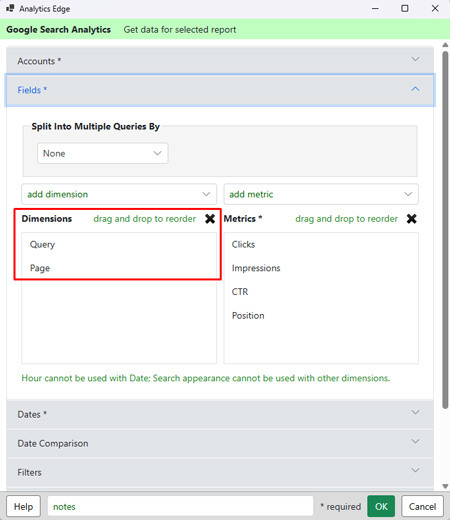
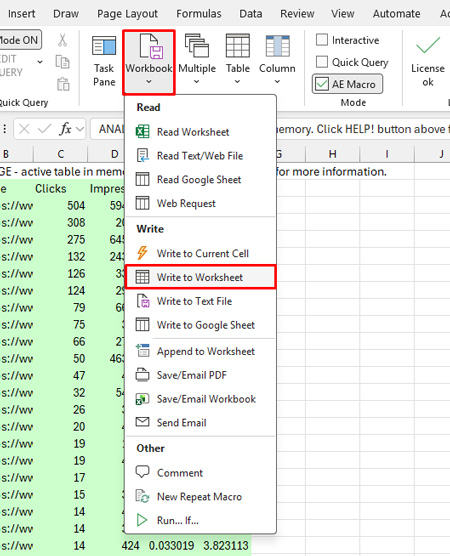
I’m not going to cover every step for using Analytics Edge, since I have other tutorials for that. First, choose your GSC property, include both query and page in the dimensions so you get queries and the pages ranking for those queries. It should only take a short time to export the data. Then “Write to worksheet” and Analytics Edge will populate a worksheet containing all of your query and landing page data.
After Analytics Edge places the export in memory, you need to write that data to a worksheet:
Next we’ll use Claude to analyze and organize the data by queries it believes are based on people using AI Mode. Those might be follow-up questions, elaborate and/or longer queries that fit AI Mode more than standard searches, etc. You’ll see what I’m talking about soon.
You can use whichever Claude surface you want for this exercise, but Claude Cowork is what I used. I created a new project, added a working directory, and included the spreadsheet containing the exported GSC data (query and landing page combinations). Then I asked Claude to analyze the data, determine which queries could be from people using AI Mode, provide reasoning for why it thought that, etc. By the way, once you get everything set up in Claude, you can easily turn it into a skill that can be used in the future whenever you want to do this across sites or clients.
Here is what I asked Claude to do:
Analyze the queries in the spreadsheet {sheet name here} and determine which ones could be prompts based on people using Google’s AI Mode. These would be queries that extend conversations, answer questions from the chatbot, or are elaborate and longer prompts that would not fit a traditional search on Google. For example, “yes”, “no”, “tell me more”, etc. Provide analysis and explain why each query was selected as an AI Mode candidate and then create a new worksheet with fields documenting your findings. Make sure to include the url that was cited as part of that conversation.
And like I thought could happen, Claude did a great job. I had 50K+ queries when exporting the query and landing page data and it took Claude just a few minutes to review and organize the queries it thought were used in AI Mode.
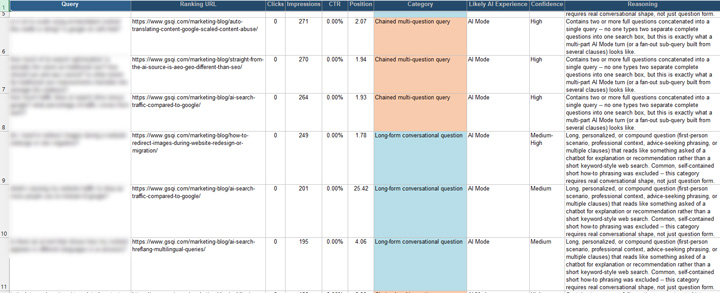
Brace yourself, you will find some wild prompts in the data, including some that are clearly automated via some tracking tools. Some queries will be so ambiguous that you will have no idea where this came from and what they are referring to. For example, “how long does it take?”, “why is this happening?”, or simply “Yes”. But you do have the landing page that was cited as part of the conversation.
But for other queries, you will see elaborate prompts along with the landing pages that ranked in AI Mode. It’s fascinating to see how some people are using AI Mode to dig deep, have conversations with Google via AI Mode, etc. But it’s also disturbing to see clearly automated queries being run by AI and SEO visibility tracking companies.
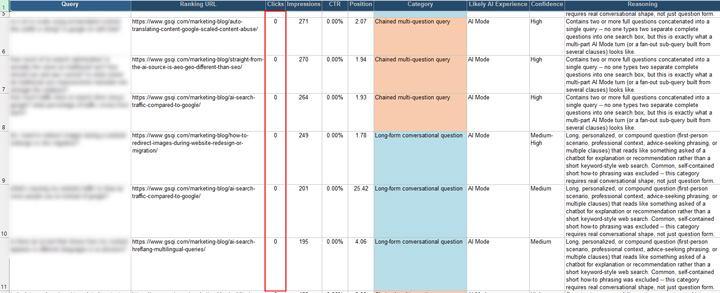
By the way, did you notice something in my last screenshot that might be alarming to site owners? There are no clicks at all for those AI Mode queries. Some of those queries are clearly from automated tracking tools, but others aren’t. And I’m not seeing many clicks there. Just something to look into across your own sites.
Summary: It’s not perfect, but you can surface AI Mode queries from Google.
Based on the news last week, I wanted to surface AI Mode data in a clean and powerful way. The combination of Analytics Edge, the Search Analytics API, and Claude Cowork was a great solution for achieving this. Again, you can set this up today and go through your own data. You might be surprised with what you find. Have fun.
GG