

Google started deindexing PDFs at scale recently, which was initially spotted by Savanna Gray on LinkedIn. And for many sites, those PDFs moved to “Crawled, not indexed” in GSC’s indexing reporting. Based on the widespread impact to sites, it seems like a bigger change to Google’s systems and not specific to those sites. And to be honest, this isn’t shocking. I’ve always told clients that if they had content ranking in PDFs, that they should look to repurpose that content as html. PDFs are clunky, especially on mobile. They can also be extremely large from a file-size standpoint.
That said, there are times sites have many PDFs ranking and repurposing isn’t an easy option. So, for those sites that just kept pdfs without repurposing them, they may have seen a huge drop in impressions and clicks from PDFs as Google deindexed many across the web.
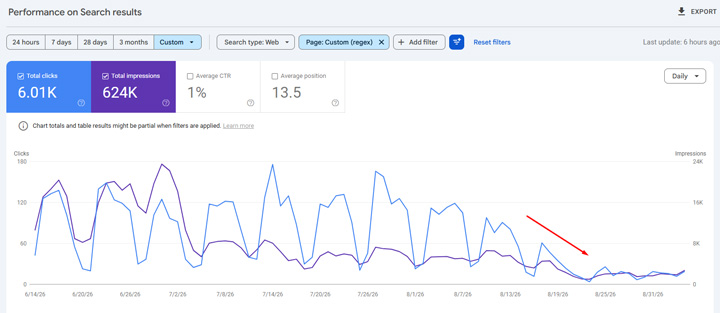
Here is a site seeing a drop in clicks and impressions for pdfs (right around 8/25):
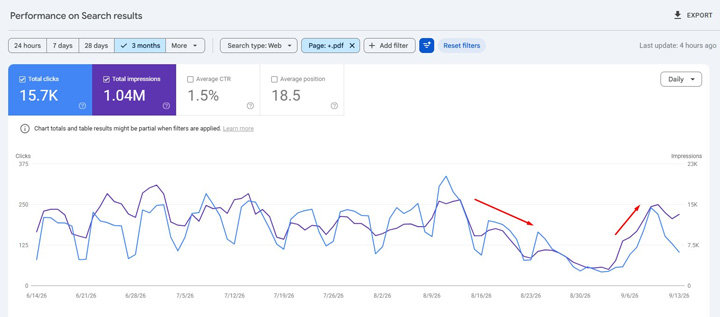
But note, I am seeing some recovery across some sites that initially saw a big drop with PDFs. I’m seeing a number of PDFs get reindexed and clicks and impressions surging back. Here’s a good example of a big drop and then recovery. And using the process in my tutorial below, you can find the PDFs that dropped and are now are back in the index. It’s just another benefit of running this process at scale. Read on.
Hunting Deindexed PDFs – Finding PDFs at scale that were removed from Google’s index:
Let’s say a site has a lot of PDFs. How can they really know which ones were deindexed that were ranking the SERPs (at scale). Going one by one doesn’t make a lot of sense and that burn a lot of time… Well, that’s where using the power of APIs can be extremely handy.
Enter the Search Analytics API and the URL Inspection API (both provided directly by Google). We’re going to combine two tutorials I have published in the past to automate the process of finding the pdfs that were deindexed. Yes, we will be hunting deindexed PDFs. And note, you can use this approach to find any type of file that as been deindexed at scale.
By the end of this tutorial, you will know:
- All of the PDFs that were ranking in the SERPs and driving traffic over a specific timeframe.
- Understand which ones have been deindexed and the reason given by Google. E.g. “Crawled, not indexed”, “Google chose a different canonical”, etc.
And beyond this situation, you will have a template set up for checking the indexing status for urls at scale (no matter the file type, url structure, etc.)
Step 1: Export all PDFs via the Search Analytics API
Note, if you have less than one thousands PDFs ranking on your site, you don’t need to use the API. The UI can provide up to one thousand rows of data. But if you have a larger site with many PDFs that were ranking, then you will need to use the Search Analytics API.
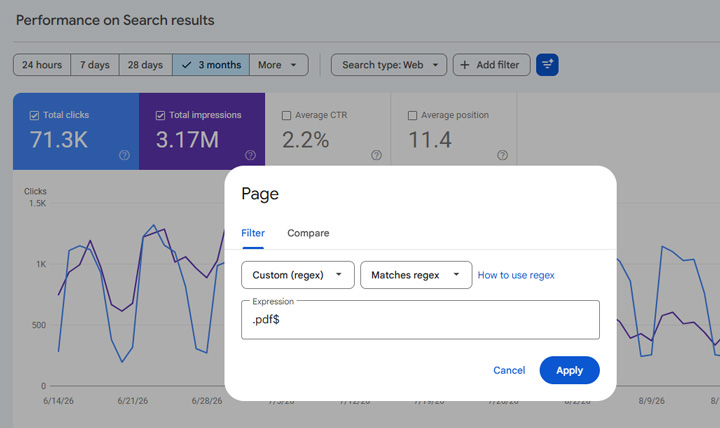
First, if you have less than one thousands PDFs, just go to the Performance reporting and filter the pages report by .pdf$ using regex. That will give you all urls receiving impressions and/or clicks during the timeframe that end with .pdf. If your pdf files have querystring parameters after .pdf, then remove the $ (which signifies the end of the url via regex).
For those with more than one thousand PDFs, and the API is necessary, you will need a mechanism for tapping into the API. Personally, I use Analytics Edge for leveraging the Search Analytics API. I have written many tutorials about how to use Analytics Edge with GSC and today’s task if very straightforward. Simply export all urls that were ranking for a specific timeframe and filter by PDFs.
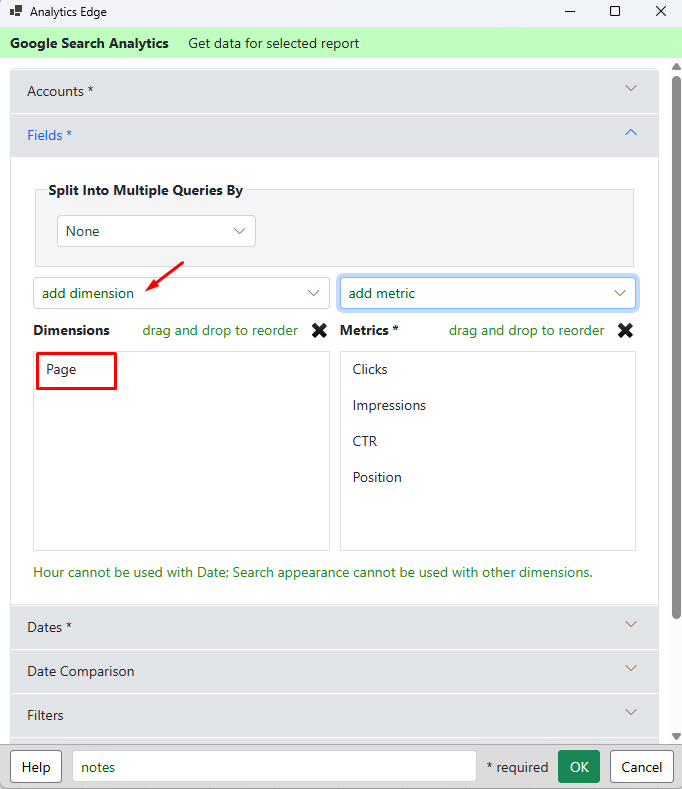
When setting up the export, make sure to select ‘Page’ as your primary dimension and then select all four metrics (clicks, impressions, CTR, and average position).
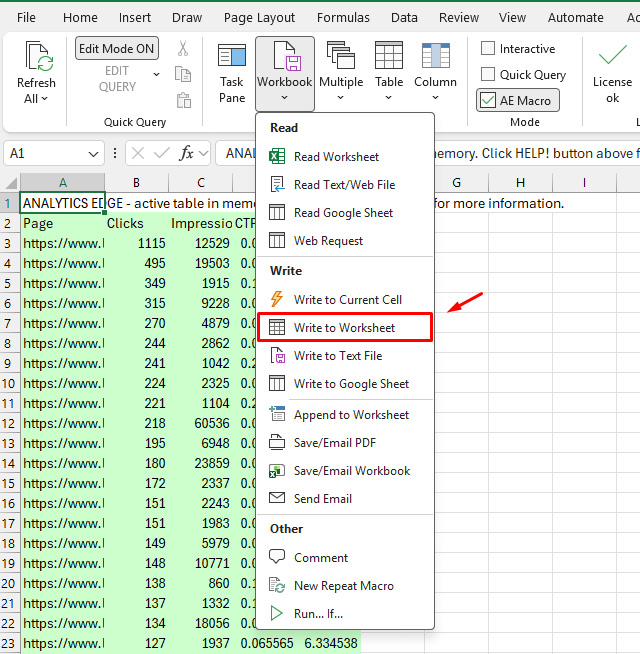
The export will only take a few seconds, then ‘Write to worksheet’ to have your list of PDFs that were ranking.
The next step is to check indexing at scale. Let’s fire up the URL Inspection API…
Step 2: Run All PDF URLs Through The URL Inspection API
The URL inspection API will check each url’s index status. It will return all of the information you see when inspecting a url within the GSC UI. And the most important field is coverageState, which provides the indexing state for the url (indexed, not indexed, reason for not being indexed, etc.) For example, this is where you can see if a page is not indexed and has been categorized as “Crawled, not indexed”, “Alt page with proper canonical”, or other reasons for being excluded from indexing.
I wrote several tutorials about using the URL Inspection API with Analytics Edge, so you can reference those articles if you are confused about how to implement this.
First, you need a worksheet containing all of the PDFs you exported in step one. Then you can use Analytics Edge to use the URL Inspection API and have it loop through all of the urls in your list to provide the index status for each one. It’s pretty awesome.
Note, there is a limit of 2,000 urls per property per day for the URL inspection API, but if you have multiple properties set up, you can run 2,000 per property… So you can check many more urls per day if you have a domain property set up, directory properties (for folders), url prefix properties, etc. It’s a nifty workaround.
Here are the steps involved for checking indexing at scale. And definitely read my previous tutorials about the URL inspection API to walk through each step in detail. It’s very easy to do this once you know how the process works:
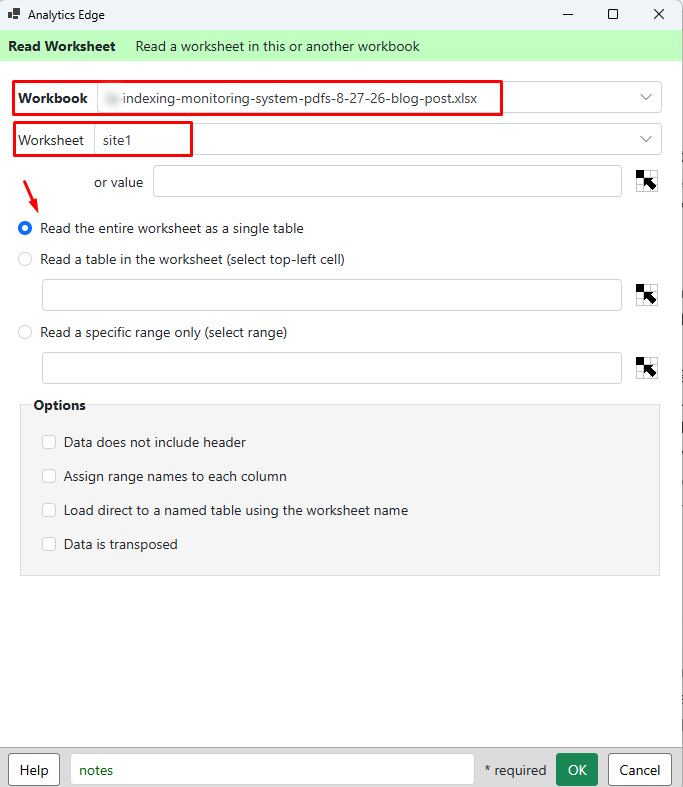
1. First, use the ReadWorksheet function to pull all pdf urls in from the first worksheet you created containing all pdfs that were ranking in Google. Just enter the worksheet name in the field.
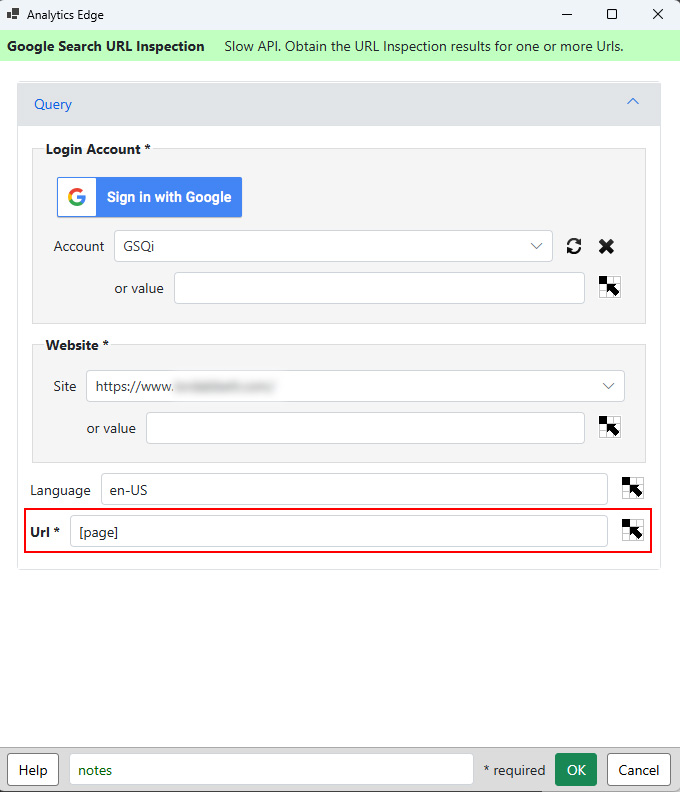
2. Then use the URL Inspection API in Analytics Edge and make sure you have the right site selected in the list and then you include the column header for the list of urls (PDFs).
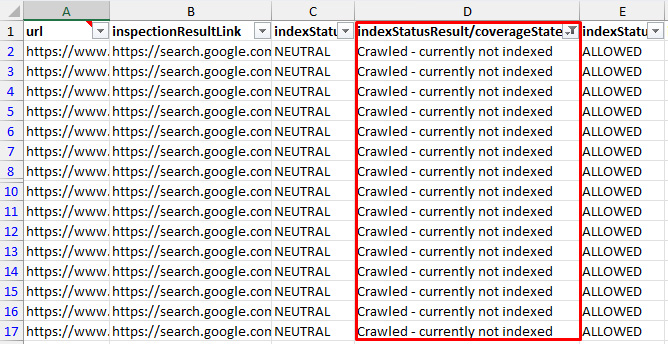
3. Analytics Edge will run through the urls and export the results to memory. Then simply ‘Write to Worksheet’ again to export the results to a new worksheet. The new worksheet will look like this:
Step 3: Analyze The Results
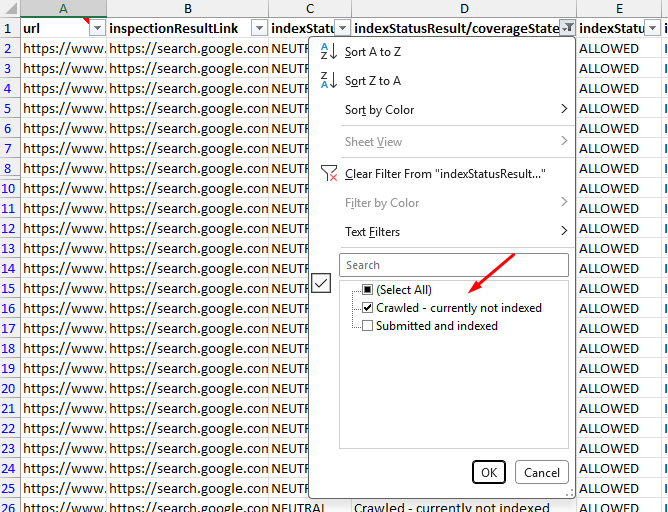
When you’re done, you will have the indexing status for every one of the PDFs that were once ranking. You can easily filter by reason like “Crawled, not indexed”, “Indexed”, etc. The process gives you a list of important PDFs that were once ranking but aren’t now. And you can form a plan for repurposing those PDFs to html pages if you want. I have several clients doing that now.
Bonus: Go Beyond the 2K url per day limit.
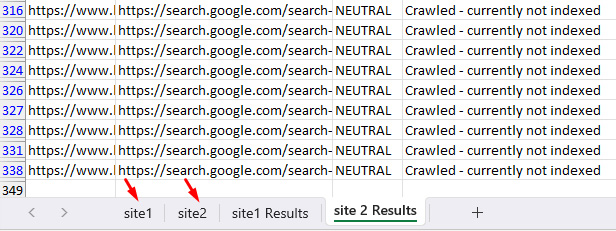
If you wanted to automate this across different GSC properties (so you can go beyond the 2K urls per day limit), then follow my tutorial for creating a multi-site indexing monitoring system. Then you can pull urls from across GSC properties and check their indexing status in one fell swoop.
Happy PDF Hunting.
GG