

I’ve been using Twitter since April 2008, so I’ve been a long-time user of the social network. And to organize the chaos of keeping track of my favorite accounts, keeping an eye on notifications, direct messages, etc., I’ve been using Tweetdeck since ~2011. Note, Tweetdeck changed to “X Pro” after Elon Musk acquired Twitter in 2022. X Pro/Tweetdeck enables you to create panes of feeds to better manage your X experience. For me, it’s been an important tool for managing Twitter/X.
Well, X Pro just went up in flames yesterday. With no warning, X decided to place X Pro (formerly Tweetdeck) behind their Premium+ plan, which is $40 per month. That’s a huge increase for many that were paying $8 per month and getting access to X Pro.
When refreshing X Pro after the news hit, I saw the dreaded upgrade screen. My Tweetdeck panes were gone and my anXiety levels hit the roof. :)
Chrome To The Rescue: Placing a square peg into a round hole.
As soon as X without X Pro became a reality, I started brainstorming ways to recreate the X Pro experience via other methods. And based on two newish Chrome features, I have a pretty good solution for recreating the X Pro experience. I used a tab group and then split view within that tab group to create pseudo panes. It works pretty well and it’s what I’ll be using in the short term. I’ll cover how to set this up below.
Step 1: Set up a tab group.
First, go to x.com and right click on the tab. Then choose “Add to tab group”, then “New Group”. I named it “Tweetdeck” since I was a bigger fan of that name than X Pro!
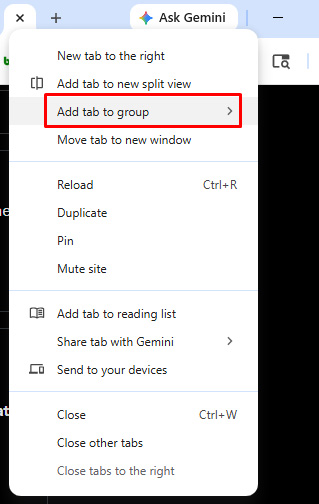
Next, add new tabs for whichever X screens you want to have part of your DIY Tweetdeck. For this post, you can open your notifications in one tab, direct messages in another, and maybe an important list you follow. Then add those to your newly-formed tab group by dragging them into the tab group or by using the menu to add them to the newly-formed “Tweetdeck” tab group.
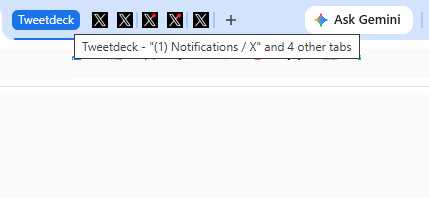
The problem now is that they are still in separate tabs. So you need to hop around from tab to tab to get a view of what’s going on. Split view can help with this. I’ll cover that next.
Step 2: Use split view to create quasi panes of X content.
Chrome’s split view enables you to split a tab’s viewport across two separate tabs. So you can view both tabs at one time. I use it often when comparing webpages, but it can work for your DIY Tweetdeck as well. Note, you can only split between two tabs. It would be awesome to split across more than two to get a true Tweetdeck feel, but this is better than nothing.
To do this, right click on the first tab in your Tweetdeck tab group and click “Add tab to new split view” or “Move tab into split view” depending on how you have things set up already. Then choose the tab you want to include in the split view. For my example, I have my notifications tab first and and then my profile next (via split view). That enables me to view notifications and my own tweets at one time.
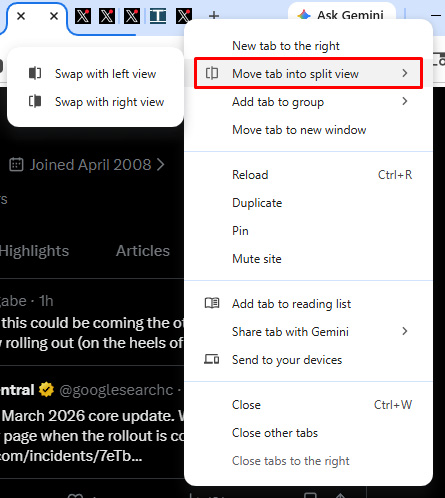
Then continue to add split view for as many tabs you have in your Tweetdeck tab group. I added two lists in another split view and then ended my tab group with my direct messages. Here is what one of the split view screens looks like with two of my lists included (SEO and AI):
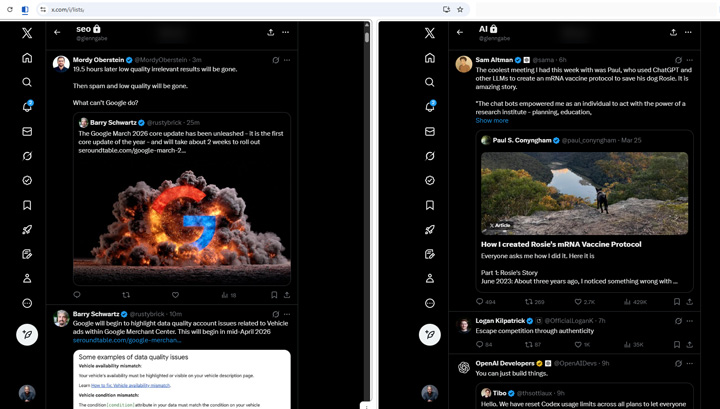
Voila! You now have a DIY Tweetdeck set up in Chrome. Again, tab groups and split view are great for achieving this setup. It’s not perfect, but better than the alternative…
Long live Tweetdeck!
GG